
Benefits of using Apple CarPlay® and Android Auto®
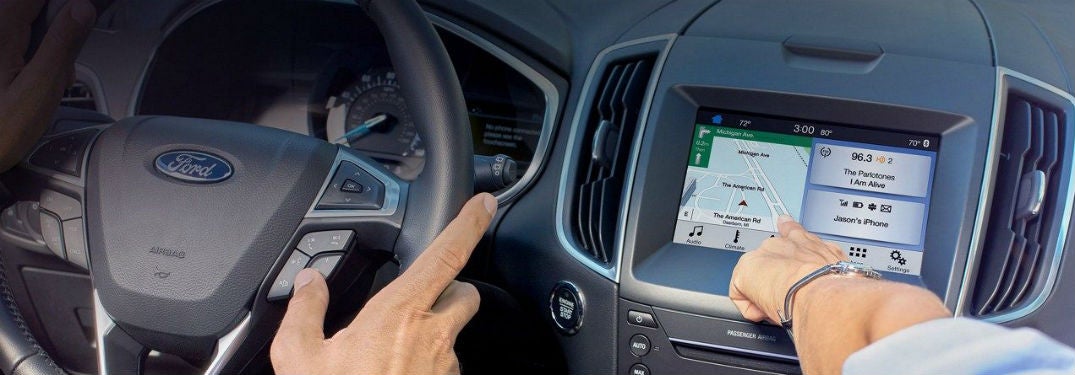
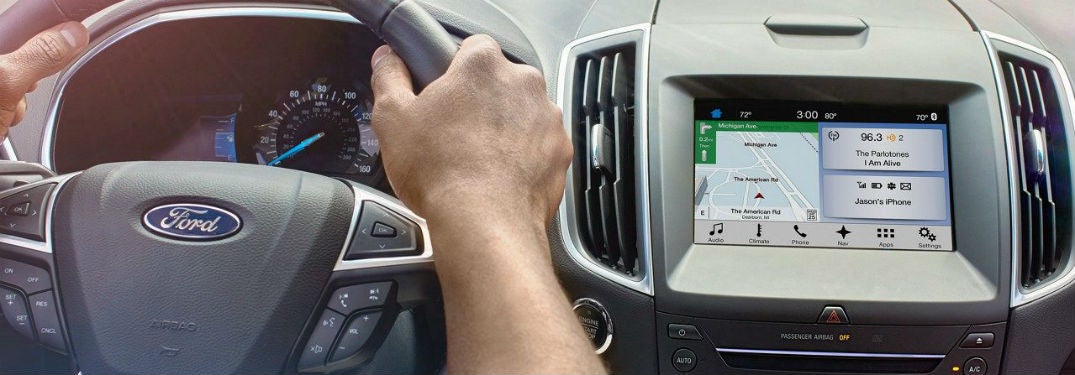
Both features can be helpful to your drive. In fact, these features can help you stay compliant with the Hands-Free Georgia Act that many other states are also adopting. With Apple Car Play® and Android Auto®, you’re able to utilize voice commands and the easy-to-use Ford navigation screens while operating your vehicle. You can use these features to interact with others while you are driving by listening to voice messages and texts, replying to texts, making phone calls, and accessing directions to get to your destination. You can also access the songs and playlists from your favorite music streaming applications to listen to in your car.Read more: How do I use the Ford SYNC® 3 Voice Command System?
How to set up Apple CarPlay®® to SYNC® 3
- Connect your USB cable to your smartphone.
- A screen will appear. Press ‘Continue’ to connect. This will only happen the first time you use this device.
- Accept the terms and conditions. Again, this will only happen when you first use this device.
- Tap ‘Yes’ to turn 911 Assist on.
- You can now interact with Apple CarPlay® through your touchscreen. This will enable you to use the voice controls and apps of this system through your Sync® 3 System. The apps you’ll be able to use are picked by the Apple CarPlay®.
How to use Android Auto® with SYNC®3
- Tap ‘Settings’ on your touchscreen.
- Select ‘Android Auto® Preferences.’
- Enable Android Auto®.
- Use plug in USB cable to phone and vehicle
- Select ‘continue’ from pop-up screen. You’ll only need to do this the first time.
- Agree to the terms and conditions. Another one that you’ll only need to do the first time.
- Select ‘yes’ to turn on the 911 Assist feature.
- Accept terms and conditions on your phone. You’ll only need to do this once.
- You can now use Android Auto® on your touchscreen!