

How to activate your SYNC® 3 Wi-Fi Hotspot
- Activate AT&T data plan.
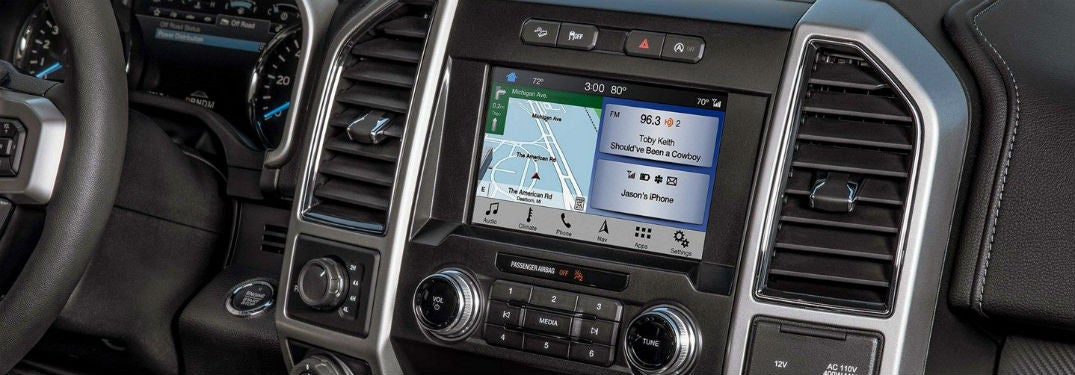
- Go to the home screen,
- Click ‘Settings.’
- Swipe left.
- Click on the Wi-Fi Hotspot tile.
- Turn on the hotspot.
How to change the Wi-Fi password in your vehicle
- Go to the Wi-Fi Hotspot tile
- Click on ‘Settings.’
- Click on ‘Edit.’
- Click on ‘Change Password.’
- Change the password to whatever you want.
- Click done.
How to view your data usage for your Wi-Fi Hotspot
- Go to the Wi-Fi Hotspot tile.
- Click on ‘Data Usage.’
- Authorize your car to view data. You can do this by using the Ford Pass App, or by going to att.com/ford.
- You can now view your data usage in your vehicle.
How to connect to your car’s Wi-Fi Hotspot
- Tap ‘settings’ on your smartphone/Wi-Fi device.
- Enter in the password you set previously.
- You’re connected!
Read More: Use your SYNC® 3 System to connect with Apple CarPlay® and Android Auto®
Benefits of using the SYNC® 3 Wi-Fi
- If this is the first time you have activated the Wi-Fi Hotspot in your Ford vehicle, you’ll get the first 3 months or first 3 GB free.
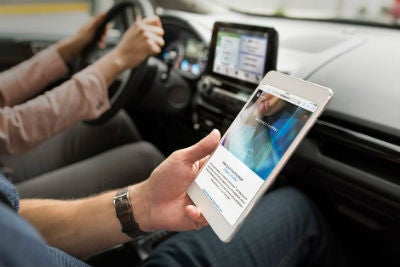
- You can connect more than one phone, tablet, or laptop to your vehicle’s Wi-Fi hotspot, which can come in handy when you are traveling longer distances with many passengers. We don’t mean one or two other devices either—this Wi-Fi hotspot can be linked to up to 10 devices.
- The signal in your vehicle can potentially be stronger than the signal on your phone, so even if you have a data plan on your phone, this can reduce the potential of drop-outs.
- How often do you use your phone’s data to listen to music or look up directions in your car? We do too. This way, you can save your phone data by having a plan that is dedicated just to in-car entertainment and navigation.