Blog / Technology

How to Pair Your Phone with Ford SYNC 3

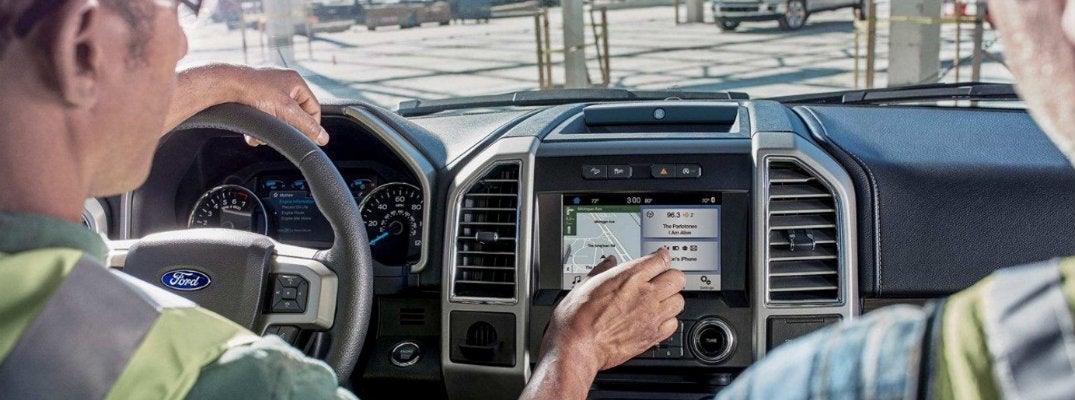
two-construction-workers-using-Ford-SYNC-3-with-phone-connection-in-Ford-vehicle
When you purchase a new Ford vehicle, you may be exposed to several new technology features. The first step to being able to utilize these features is learning how they work. For instance, if you are looking to access your phone and music through Ford SYNC 3, you will need to pair your phone with the system. In order to do so, all you have to do is follow these pairing instructions. Once your phone is connected, you will be able to make and receive calls as well as stream your favorite tunes.

You may also like: How does Ford Pre-Collision with Pedestrian Detection work?

Bluetooth Pairing Instructions for Ford SYNC 3

  1. Start your Ford vehicle and make sure your phone is turned on.
  2. Enable and turn on your phone's Bluetooth settings.
  3. On the bottom of your SYNC 3 display screen, press Settings.
  4. Choose Bluetooth, then Add a Bluetooth Device.
  5. Turn back to your phone's Bluetooth settings. Your phone should scan for Bluetooth devices.
  6. Your Ford's SYNC 3 system should show up in the list of devices. Select it.
  7. Both the vehicle display screen and your phone should display a PIN. Ensure they match and accept the pairing on both.
  8. A screen may pop up on the SYNC 3 system asking if you want to "Set as Favorite Phone" and/or "Auto-Download" contacts. You can either accept or deny.
  9. Press Finish to complete the pairing process.
There you have it! Your phone should now be connected to your Ford SYNC 3 system. If you run into problems during the pairing process or have questions about what you can do now that your phone is connected, feel free to contact our team at Wade Ford or get in touch with your local Ford dealer.
Contact Us
Posted in:

Related Posts

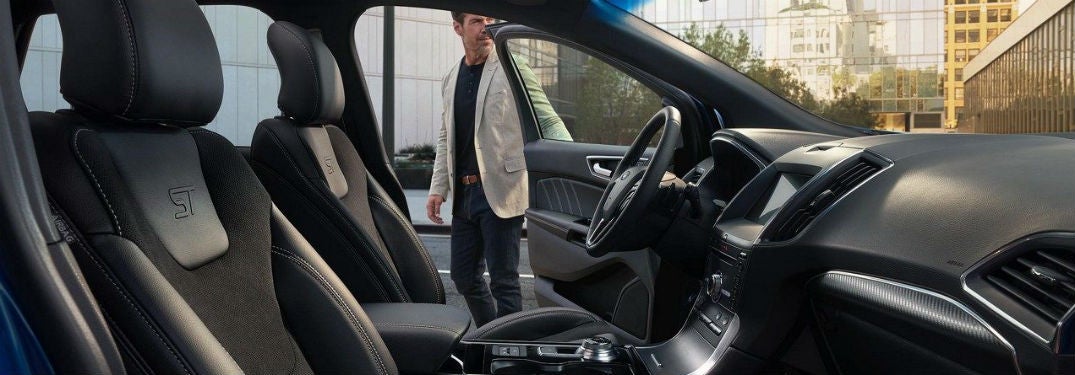
2019 Ford Edge interior side view of front cabin with man opening drivers side door

How to set up your SYNC® 3 Wi-Fi Hotspot system in your Ford vehicle

Don’t know how to set up your SYNC® 3 Wi-Fi Hotspot system in your Ford vehicle? Now you can! Check out our step-by-step guidelines on how to make your life just a bit easier with this great technology feature. After, you can contact us here at Wade Ford if you have any questions. more How to activate your SYNC® 3 Wi-Fi Hotspot Activate AT&T data plan. Go to the home screen, Click ‘Settings.’ Swipe left. Click on the Wi-Fi Hotspot tile. Turn on the hotspot. How to change the Wi-Fi password in your vehicle Go to the Wi-Fi Hotspot tile Click on ‘Settings.’ Click on ‘Edit.’ Click on ‘Change Password.’ Change the password to whatever you want. Click done. How to view your data usage for your Wi-Fi Hotspot Go to the Wi-Fi Hotspot tile. Click on ‘Data Usage.’ Authorize your car to view data. You can do this by using the Ford Pass App, or by going to att.com/ford. You can now view your data usage in your vehicle. How to connect to your car’s Wi-Fi Hotspot Tap ‘settings’ on your smartphone/Wi-Fi device. Enter in the password you set previously. You’re connected! Read More: Use your SYNC® 3 System to connect with Apple CarPlay® and Android Auto® Benefits of using the SYNC® 3 Wi-Fi If this is the first time you have activated the Wi-Fi Hotspot in your Ford vehicle, you’ll get the first 3 months or first 3 GB free. You can connect more than one phone, tablet, or laptop to your vehicle’s Wi-Fi hotspot, which can come in handy when you are traveling longer distances with many passengers. We don’t mean one or two other devices either—this Wi-Fi hotspot can be linked to up to 10 devices. The signal in your vehicle can potentially be stronger than the signal on your phone, so even if you have a data plan on your phone, this can reduce the potential of drop-outs. How often do you use your phone’s data to listen to music or look up directions in your car? We do too. This way, you can save your phone data by having a plan that is dedicated just to in-car entertainment and navigation. Visual learner? No problem! Click here to view a step-by-step video guide on how to set up your Wi-Fi Hotspot with SYNC® 3 Ford Vehicles with Wi-Fi Hotspots in Smyrna You can find your next Ford vehicle with this Wi-Fi Hotspot system right here in Smyrna, GA. Come on over to Wade Ford to pick out your new or used Ford vehicle today.

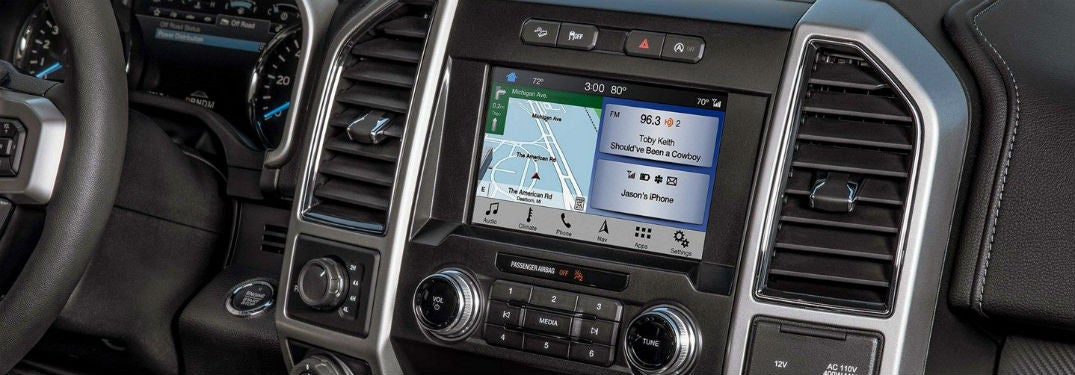
2019 Ford F-150 interior front cabin close-up of display screen

How do I use the Ford SYNC®3 Voice Command System?

Have you gone on Ford’s official YouTube channel lately? You may want to check it out. They’ve posted some helpful and informative things. We've taken one of their videos to share with you right here! Now, you can see how you can use the Ford SYNC®3 Voice Command System in your Ford vehicle. more Ford SYNC®3 how-to video Is it legal to use my phone when driving in Georgia? It is not legal to use your phone when driving in Georgia. This means that you cannot text, call, or use your phone to switch songs when you are driving. That’s where the benefits of the SYNC® 3 system comes in. If you have this system, you can do things like answer a text, listen to a text, and answer the phone, all with just a few voice commands. So, if you have the SYNC® 3 system you can potentially help your drive be safer using this hands-free system. Voice commands of the SYNC® 3 system We won’t list all of the voice commands, but here are some you may find yourself using more often. “USB.” This puts it in USB mode, which you can then use these commands: “Play (track name) “Shuffle (on/off) Play artist (name) Play playlist (name) Play genre (name) “Bluetooth Audio” “Climate” pause for a bit “Max A/C” “Set temperature to (number) degrees” “Call (name) on cell/work/home” “Find POI/Place (name, such as ‘bookstore’ or ‘airport’) “Listen to text message” “Reply to text message” These are only a few commands you can use. If you are looking for more, you can contact us here at Wade Ford, or look on the official Ford website! Where can I find a Ford vehicle that uses SYNC® 3 near Smyrna? People who live in cities or towns close to Smyrna such as Marietta, Atlanta, Sandy Springs, and Cumberland can come on over to Wade Ford! Here, you can find Ford vehicles that have the SYNC® 3 system! If you don’t know where to find us, you can get directions to our dealership here. We have many Ford vehicles here at our dealership, so don’t miss out on your chance to get one today! A Ford vehicle with the SYNC® 3 system can be a great help to your daily drive, and can potentially help keep your drive safer with its hands-free experience. We hope this has helped you figure out how to use this excitingly convenient technology. If you have any further questions please don’t hesitate to contact us here at Wade Ford! For more neat tips and tricks, be sure to check out our blog.


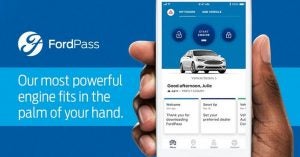
Ford Pass in Smyrna, GA | Wade Ford

4 Ways FordPass Makes Your Drive Easier

With convenience and connectivity becoming increasingly important considerations for vehicle buyers, Ford attempts to stay abreast of its competitors with the introduction of several new features over the past few years. One of its most significant tech offerings is the FordPass. This app is basically a transportation concierge program that enables you to perform a wide range of driving-related tasks more easily, from booking parking spots to locating gas stations. Discover how FordPass can contribute to a more convenient and pleasant driving experience. What Is FordPass? While its main function is to help you find parking, FordPass can also perform many other tasks. It makes driving easier by allowing you to do what you used to do with several different apps on one single app. It enables you to locate parking spots and gas stations, control your vehicle remotely, make payments, and obtain a wide range of information about your vehicle. FordPass is compatible with both Android and Apple smartphones. more Four Useful FordPass Functions Book Parking Spots With FordPass, you can look for parking spots, view prices, and make reservations before you leave your home. The system can help you book parking spaces directly with Parkopedia and Parkwhiz and access airport parking via FlightCar. If you like a particular parking spot that you have previously used, you can save it on the app and reserve it the next time you need to park at the same destination. Find Gas Stations FordPass also comes with a fuel-checking function that enables you to keep track of your vehicle's fuel level from a remote location. This can help you avoid the unfortunate situation of running out of gas. When you need to fill up, you can use the app to look for a gas station in your vicinity. It'll map out all the gas stations within a certain distance from you and provide all the information you need about their fuel offerings, including brands, grades, and prices. It ensures that you'll always get the best deal whenever you need to refuel your vehicle. Control Your Vehicle Remotely Besides checking fuel levels, you can also lock and unlock your vehicle and start the engine remotely with FordPass. You'll especially appreciate the remote engine start feature during winter because it allows you to warm up your car's cabin before you step out of your house. The remote lock/unlock function can be used to keep your car safe if you forget to lock it. Provide Access to 24/7 Assistance With the FordPass app, you'll have easy access to Ford's friendly and helpful FordGuide team. Experts will be available on live chat or over the phone to answer any question you may have about FordPass. Additionally, they can help you arrange for roadside assistance if your vehicle runs out of gas, has a flat tire, or needs towing. FordPass is a useful feature that can make driving easier and help you reduce your fuel and parking costs. If you're planning to purchase a Ford vehicle, make sure you ask about this awesome app. Image via Ford.com